In this tutorial, we’ll discuss how to build an STM32 web server over WiFi that you can open from any browser on your network to control the STM32’s GPIO pins and read its sensors, using an ESP32-C3 as a WiFi co-processor. You’ll learn how an STM32 can serve web pages through the ESP32-C3’s TCP server (ESP-AT), how to parse HTTP requests and send responses on the STM32, how to update a page live with JSON, and how to open the page by name at http://stm32.local.
Then, we’ll build two STM32 web server example projects with our ESP_AT driver: a web page that turns the Blue Pill’s LED on and off, and a live dashboard that charts the STM32’s internal temperature sensor. We’ll also measure how fast the pages load and what happens when several browsers connect at once. This is the fifth part of our STM32 WiFi tutorial series. Without further ado, let’s get right into it!
Note: The STM32 code examples in this tutorial are tested with: STM32 Blue Pill (STM32F103C8T6), ESP32-C3 Core Board with ESP-AT firmware, Chrome, and a phone browser.
STM32 Web Server: How It Works
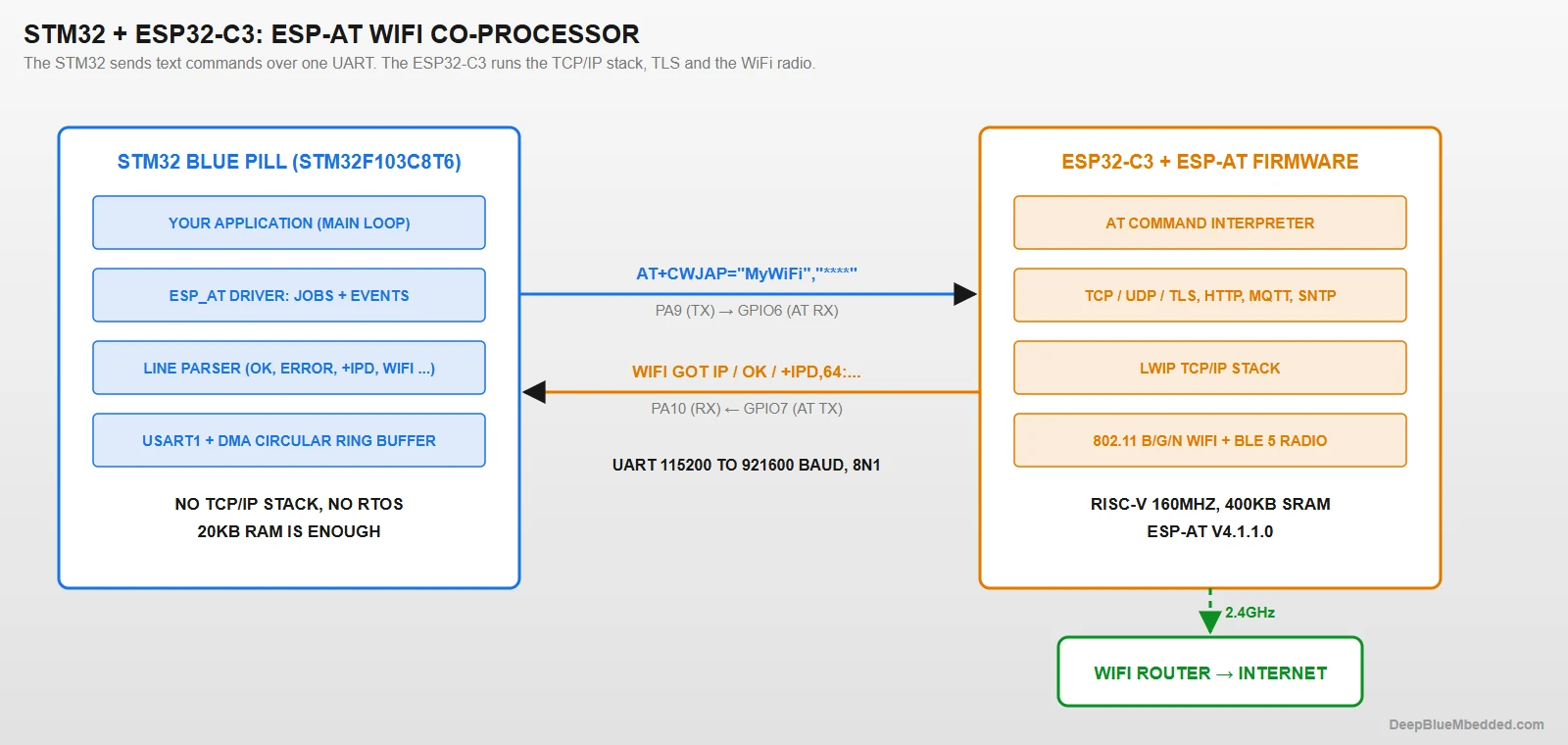
A web server waits for TCP connections on port 80, reads the request a browser sends (for example, GET /led/on HTTP/1.1), and sends back a response: a status line, a few headers, and the page or data. With an ESP32-C3 running ESP-AT, the ESP32-C3 holds the WiFi connection and the TCP server, and the STM32 handles the HTTP part:
| Step | Who Does It | AT Command or Event |
|---|---|---|
| Enable multiple connections, start the TCP server on port 80 | STM32 (once) | AT+CIPMUX=1, AT+CIPSERVER=1,80 |
| A browser connects | ESP32-C3 tells the STM32 | <link>,CONNECT |
| The browser’s request arrives | ESP32-C3 passes it to the STM32 | +IPD,<link>,<len>:GET / HTTP/1.1... |
| Read the request line, choose the response | STM32 | – |
| Send the response, close the connection | STM32 | AT+CIPSEND=<link>,<len>, AT+CIPCLOSE=<link> |
The ESP32-C3 can keep up to 5 connections (links 0 to 4) open at a time, and every message carries its link number, so the STM32 knows which browser it’s answering. Our ESP_AT driver from the ESP32 AT commands with STM32 tutorial does this routing: it delivers each request as an event with its link number, and ESP_AT_SendClose() sends a response on a link and then closes it.
STM32 Web Server Wiring and CubeMX Configuration
Required Parts
| QTY. | Component Name | Amazon.com | AliExpress |
|---|---|---|---|
| 1 | STM32 Blue Pill (STM32F103C8T6) | Amazon | AliExpress |
| 1 | ST-Link V2 Debugger | Amazon | AliExpress |
| 1 | ESP32-C3 board (ESP32-C3 SuperMini; we use the WeAct ESP32-C3 Core Board) | Amazon | AliExpress |
| 1 | USB-TTL (UART) Converter, 3.3V | Amazon | AliExpress |
| 1 | BreadBoard | Amazon | AliExpress |
| 1 | Jumper Wires Pack | Amazon | AliExpress |
STM32 ESP32-C3 Wiring
The wiring is the same as in the previous parts of this series: the STM32’s USART1 goes to the ESP32-C3’s AT port, and USART2’s TX pin goes to a USB-TTL converter for the log. The ESP32-C3 needs the ESP-AT firmware (the ESP32 AT commands tutorial shows how to flash it).
PA9 USART1 TX, goes to the ESP32-C3 GPIO6 (AT RX).
PA10 USART1 RX, goes to the ESP32-C3 GPIO7 (AT TX).
PA2 USART2 TX, goes to the USB-TTL converter’s RX: the log to your PC at 115200 baud.
GND Goes to the ESP32-C3 GND and the USB-TTL GND: common ground.
STM32 CubeMX Configuration
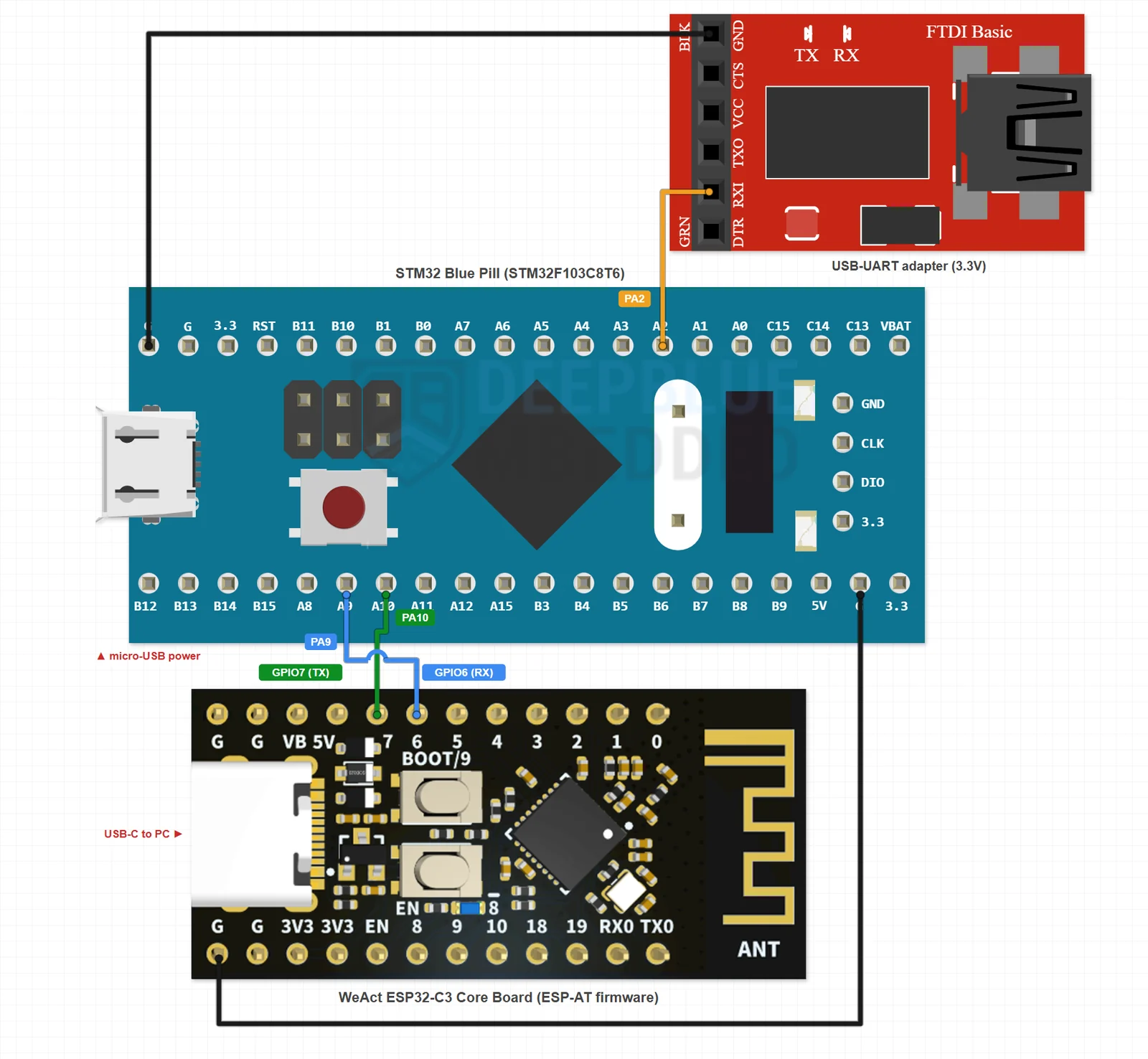
Start from the CubeMX configuration of the ESP32 AT commands tutorial (every step has a screenshot there): USART1 at 115200 baud with RX DMA in Circular mode and the USART1 global interrupt for the ESP32-C3, USART2 for the log, PC13 as the LED output, and the 72MHz clock.
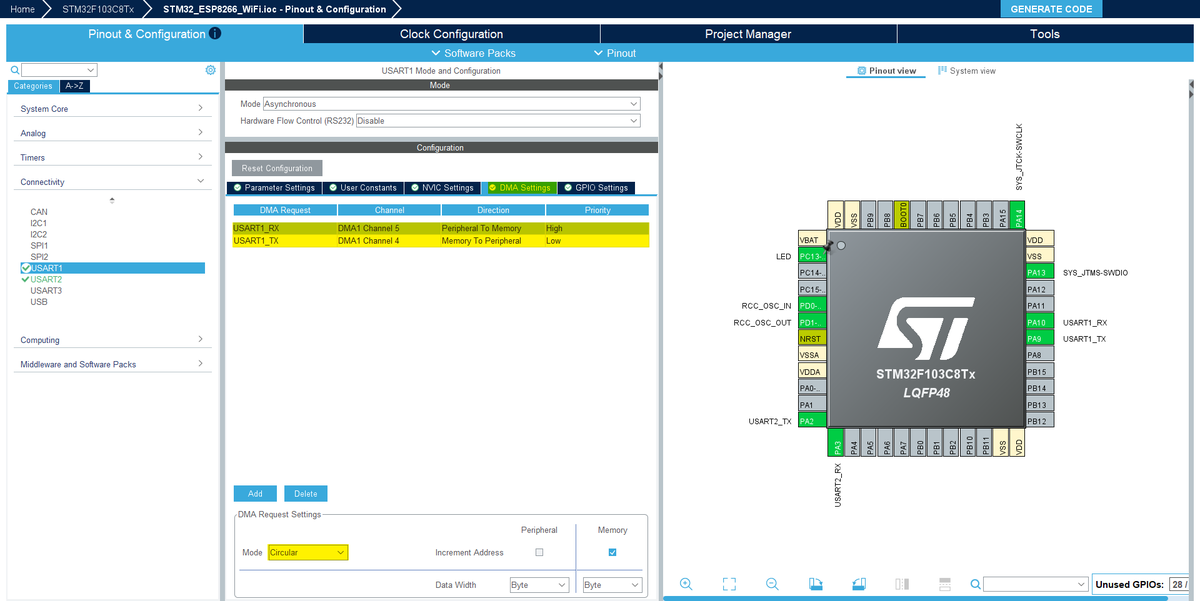
For the temperature examples, also enable ADC1 with the Temperature Sensor Channel and the Vrefint Channel, and set the sampling time to 239.5 cycles (the sensor needs a long sampling time). Set the ADC clock to 12MHz (PCLK2 / 6) in the Clock Configuration tab. The STM32 internal temperature sensor tutorial walks through these settings.
STM32 Web Server Functions (ESP_AT Driver)
| Function or Event | What It Does |
|---|---|
cfg.multiLink = 1 | Lets the ESP32-C3 keep up to 5 connections (needed for a server) |
ESP_AT_ServerStart(&esp, 80) | Starts the TCP server on port 80 (AT+CIPSERVER=1,80) |
ESP_AT_Mdns(&esp, "stm32", "_http", 80) | Announces the page as http://stm32.local with AT+MDNS |
ESP_AT_EVT_LINK_OPENED / ESP_AT_EVT_LINK_CLOSED | A browser connected or disconnected, d->link says which one |
ESP_AT_EVT_DATA | Request bytes from a browser, with d->link |
ESP_AT_SendClose(&esp, link, data, len) | Sends a response on one link, then closes that link |
STM32 Web Server Example 1: Control LED From a Web Page
In the first example project, the STM32 serves a web page with two buttons, LED ON and LED OFF, and a status box. In other words, any phone or computer on your WiFi can turn the Blue Pill’s on-board LED (PC13) on and off:
- /: the web page itself (1.2KB of HTML, CSS, and JavaScript stored in the STM32’s flash).
- /led/on, /led/off, /led/toggle: change the LED and answer with the new state as JSON.
- /status: the LED state, uptime, chip temperature, and the number of requests as JSON. The page asks for it every second, so it stays up to date even if someone else changes the LED.
- Anything else gets a 404 Not Found.
Wiring: PA9 to ESP32-C3 GPIO6, PA10 to GPIO7, PA2 to the USB-TTL RX, and GND to both.
Write your WiFi name and password in Core/Inc/wifi_secrets.h:
|
1 2 |
#define WIFI_SSID "YOUR_WIFI_NAME" #define WIFI_PASSWORD "YOUR_WIFI_PASSWORD" |
Here is The Application Code For This Example Project (main.c). Only the USER CODE sections are shown; the rest of the file is generated by CubeMX:
|
1 2 3 4 5 6 7 8 9 10 11 12 13 14 15 16 17 18 19 20 21 22 23 24 25 26 27 28 29 30 31 32 33 34 35 36 37 38 39 40 41 42 43 44 45 46 47 48 49 50 51 52 53 54 55 56 57 58 59 60 61 62 63 64 65 66 67 68 69 70 71 72 73 74 75 76 77 78 79 80 81 82 83 84 85 86 87 88 89 90 91 92 93 94 95 96 97 98 99 100 101 102 103 104 105 106 107 108 109 110 111 112 113 114 115 116 117 118 119 120 121 122 123 124 125 126 127 128 129 130 131 132 133 134 135 136 137 138 139 140 141 142 143 144 145 146 147 148 149 150 151 152 153 154 155 156 157 158 159 160 161 162 163 164 165 166 167 168 169 170 171 172 173 174 175 176 177 178 179 180 181 182 183 184 185 186 187 188 189 190 191 192 193 194 195 196 197 198 199 200 201 202 203 204 205 206 207 208 209 210 211 212 213 214 215 216 217 218 219 220 221 222 223 224 225 226 227 228 229 |
/* USER CODE BEGIN Includes */ #include <stdio.h> #include <string.h> #include <stdarg.h> #include "ESP_AT.h" #include "wifi_secrets.h" /* USER CODE END Includes */ /* USER CODE BEGIN 0 */ /* One handle per ESP module */ static ESP_AT_HandleType esp; /* printf-style log on USART2 (the USB-UART adapter to the PC) */ static void Log(const char *fmt, ...) __attribute__((format(printf, 1, 2))); static void Log(const char *fmt, ...) { char buf[200]; va_list ap; va_start(ap, fmt); int n = vsnprintf(buf, sizeof(buf), fmt, ap); va_end(ap); if (n > (int)sizeof(buf) - 1) n = (int)sizeof(buf) - 1; if (n > 0) HAL_UART_Transmit(&huart2, (uint8_t *)buf, (uint16_t)n, 100); } /* Driver traffic log: ">>" = sent to the module, "<<" = received, "--" = driver note */ static void OnTrace(ESP_AT_HandleType *h, ESP_AT_TraceType type, const char *text) __attribute__((unused)); static void OnTrace(ESP_AT_HandleType *h, ESP_AT_TraceType type, const char *text) { (void)h; Log("%s %s\r\n", (type == ESP_AT_TRACE_TX) ? ">>" : (type == ESP_AT_TRACE_RX) ? "<<" : "--", text); } /* The HAL stops the DMA reception after a UART error; the driver restarts it */ void HAL_UART_ErrorCallback(UART_HandleTypeDef *huart) { ESP_AT_UART_ErrorCallback(&esp, huart); } /* Settings for this demo */ #define SERVER_PORT_HTTP 80 #define SERVER_BAUD 115200U /* module UART speed; 921600 loads the page about 3x faster */ #define MDNS_NAME "stm32" /* the page also opens at http://stm32.local (where mDNS works) */ #define CLIENT_TIMEOUT_S 10 /* the ESP closes a client link that stays idle this long */ #ifndef WIFI_NO_SLEEP #define WIFI_NO_SLEEP 1 /* 1: AT+SLEEP=0, no WiFi modem sleep: faster replies, more current */ #endif /* The web page, sent as it is from flash. "Connection: close" ends the response when the link closes, * so no Content-Length is needed. The script asks /status every second and the buttons call /led/... */ static const char pageResponse[] = "HTTP/1.1 200 OK\r\nContent-Type: text/html\r\nCache-Control: no-store\r\nConnection: close\r\n\r\n" "<!DOCTYPE html><html><head><meta charset=utf-8>" "<meta name=viewport content=\"width=device-width,initial-scale=1\"><title>STM32 Web Server</title>" "<style>body{font-family:sans-serif;margin:20px;text-align:center;background:#f4f6f8}" "button{font-size:20px;padding:14px 26px;margin:8px;border:0;border-radius:10px;color:#fff}" "#on{background:#1e9e5a}#off{background:#c0392b}" "#box{margin:18px auto;max-width:320px;padding:14px 18px;background:#fff;border-radius:10px;" "text-align:left;line-height:1.7;box-shadow:0 1px 4px #0002}</style></head><body>" "<h2>STM32 Blue Pill Web Server</h2><p>over WiFi with an ESP32-C3 (ESP-AT)</p>" "<button id=on onclick=\"led('on')\">LED ON</button><button id=off onclick=\"led('off')\">LED OFF</button>" "<div id=box>connecting...</div><script>" "function show(j){document.getElementById('box').innerHTML='LED: <b>'+(j.led?'ON':'OFF')+" "'</b><br>Uptime: '+j.uptime+' s<br>Chip temperature: '+j.temp+' °C<br>Requests served: '+j.requests}" "function led(s){fetch('/led/'+s).then(r=>r.json()).then(show)}" "function poll(){fetch('/status').then(r=>r.json()).then(show).catch(()=>{})" ".finally(()=>setTimeout(poll,1000))}poll()</script></body></html>"; static const char notFound[] = "HTTP/1.1 404 Not Found\r\nContent-Type: text/plain\r\nConnection: close\r\n\r\nNot found\n"; /* One request slot per ESP link (0..4) */ typedef struct { uint8_t open; /* link connected */ uint8_t lineDone; /* the request line has arrived */ uint8_t answered; /* response handed to the driver */ uint8_t len; char line[96]; /* "GET /status HTTP/1.1" */ uint32_t tOpen; /* CONNECT time */ uint32_t tSend; /* response start */ uint16_t respLen; } SlotType; static SlotType slots[ESP_AT_MAX_LINKS]; static char jsonResponse[200]; /* must stay unchanged while it is being sent */ static uint32_t requests = 0; static int16_t tempTenths = 0; /* chip temperature in 0.1 C */ static uint8_t lastLink = 0; static uint8_t LedIsOn(void) { return HAL_GPIO_ReadPin(LED_GPIO_Port, LED_Pin) == GPIO_PIN_RESET; } /* active low */ /* STM32F103 internal sensor (datasheet: V25 = 1.43 V, slope 4.3 mV/C, accuracy about +-1.5 C after offset) */ static void ReadTemperature(void) { HAL_ADC_Start(&hadc1); if (HAL_ADC_PollForConversion(&hadc1, 5) == HAL_OK) { int32_t mv = (int32_t)(HAL_ADC_GetValue(&hadc1) * 3300U / 4095U); tempTenths = (int16_t)(((1430 - mv) * 100) / 43 + 250); } HAL_ADC_Stop(&hadc1); } static void OnEvent(ESP_AT_HandleType *h, ESP_AT_EventType ev, const ESP_AT_EventDataType *d) { (void)h; if (d->link >= ESP_AT_MAX_LINKS) return; SlotType *s = &slots[d->link]; switch (ev) { case ESP_AT_EVT_LINK_OPENED: memset(s, 0, sizeof(*s)); s->open = 1; s->tOpen = HAL_GetTick(); break; case ESP_AT_EVT_DATA: /* keep only the first line of the request */ for (uint16_t i = 0; i < d->len && !s->lineDone; i++) { char c = (char)d->data[i]; if (c == '\r' || c == '\n' || s->len >= sizeof(s->line) - 1) { s->line[s->len] = '\0'; s->lineDone = 1; } else s->line[s->len++] = c; } break; case ESP_AT_EVT_LINK_CLOSED: if (s->answered) Log("[link %u] closed, %lu ms from connect to close\r\n", d->link, (unsigned long)(HAL_GetTick() - s->tOpen)); s->open = 0; s->lineDone = 0; break; case ESP_AT_EVT_JOB_DONE: if (d->job == ESP_AT_JOB_SEND) { SlotType *a = &slots[lastLink]; Log("[link %u] %s: %u bytes sent and link closed in %lu ms\r\n", lastLink, ESP_AT_StatusText(d->status), a->respLen, (unsigned long)(HAL_GetTick() - a->tSend)); } break; default: break; } } /* Pick the response for one request line */ static const char *Route(const char *line, uint16_t *len, int *code) { char path[40] = ""; if (strncmp(line, "GET ", 4) == 0) /* "GET /led/on HTTP/1.1" -> "/led/on" */ { uint8_t n = 0; for (const char *p = line + 4; *p && *p != ' ' && *p != '?' && n < sizeof(path) - 1; p++) path[n++] = *p; path[n] = '\0'; } *code = 200; if (strcmp(path, "/") == 0) { *len = sizeof(pageResponse) - 1; return pageResponse; } if (strcmp(path, "/led/on") == 0) HAL_GPIO_WritePin(LED_GPIO_Port, LED_Pin, GPIO_PIN_RESET); else if (strcmp(path, "/led/off") == 0) HAL_GPIO_WritePin(LED_GPIO_Port, LED_Pin, GPIO_PIN_SET); else if (strcmp(path, "/led/toggle") == 0) HAL_GPIO_TogglePin(LED_GPIO_Port, LED_Pin); else if (strcmp(path, "/status") != 0) { *code = 404; *len = sizeof(notFound) - 1; return notFound; } int t = tempTenths < 0 ? -tempTenths : tempTenths; int n = snprintf(jsonResponse, sizeof(jsonResponse), "HTTP/1.1 200 OK\r\nContent-Type: application/json\r\nCache-Control: no-store\r\nConnection: close\r\n\r\n" "{\"led\":%u,\"uptime\":%lu,\"temp\":%s%d.%d,\"requests\":%lu}", LedIsOn(), (unsigned long)(HAL_GetTick() / 1000U), tempTenths < 0 ? "-" : "", t / 10, t % 10, (unsigned long)requests); *len = (uint16_t)n; return jsonResponse; } /* USER CODE END 0 */ /* Inside main(), after the MX_..._Init() calls */ /* USER CODE BEGIN 2 */ ESP_AT_ConfigType cfg = {0}; cfg.huart = &huart1; cfg.multiLink = 1; /* a server needs AT+CIPMUX=1: one link per browser connection */ cfg.autoReconnect = 1; cfg.baudRate = SERVER_BAUD; cfg.onEvent = OnEvent; Log("\r\n=== ESP_AT Demo 8: web server ===\r\n"); HAL_ADCEx_Calibration_Start(&hadc1); ReadTemperature(); if (ESP_AT_Init(&esp, &cfg) != ESP_AT_OK) Error_Handler(); if (ESP_AT_Begin_Blocking(&esp) != ESP_AT_OK) { Log("no module\r\n"); Error_Handler(); } Log("Module: %s at %lu baud\r\n", esp.version, (unsigned long)esp.baudRate); if (ESP_AT_WiFiJoin_Blocking(&esp, WIFI_SSID, WIFI_PASSWORD) != ESP_AT_OK) { Log("join failed\r\n"); Error_Handler(); } char cmd[24]; snprintf(cmd, sizeof(cmd), ESP_AT_CMD_CIPSTO, (unsigned)CLIENT_TIMEOUT_S); ESP_AT_Command_Blocking(&esp, cmd, 1000); #if WIFI_NO_SLEEP Log("WiFi power save off: %s\r\n", ESP_AT_StatusText(ESP_AT_Command_Blocking(&esp, "AT+SLEEP=0", 1000))); #endif Log("Server: %s\r\n", ESP_AT_StatusText(ESP_AT_ServerStart_Blocking(&esp, SERVER_PORT_HTTP))); Log("mDNS: %s\r\n", ESP_AT_StatusText(ESP_AT_Mdns_Blocking(&esp, MDNS_NAME, "_http", SERVER_PORT_HTTP))); Log("Open http://%s/ (or http://%s.local/) in a browser on the same WiFi\r\n", esp.ip, MDNS_NAME); uint32_t tempTime = HAL_GetTick(); /* USER CODE END 2 */ /* Inside while (1) */ /* USER CODE BEGIN 3 */ ESP_AT_Process(&esp); if (HAL_GetTick() - tempTime >= 1000) { tempTime = HAL_GetTick(); ReadTemperature(); } /* Answer one waiting request at a time, taking the links in turn */ if (!ESP_AT_IsBusy(&esp)) { for (uint8_t k = 1; k <= ESP_AT_MAX_LINKS; k++) { uint8_t i = (uint8_t)((lastLink + k) % ESP_AT_MAX_LINKS); SlotType *s = &slots[i]; if (!s->open || !s->lineDone || s->answered) continue; uint16_t len; int code; const char *resp = Route(s->line, &len, &code); if (ESP_AT_SendClose(&esp, i, resp, len) == ESP_AT_OK) { s->answered = 1; s->tSend = HAL_GetTick(); s->respLen = len; lastLink = i; requests++; Log("[link %u] %s -> %d (request arrived %lu ms after connect)\r\n", i, s->line, code, (unsigned long)(s->tSend - s->tOpen)); } break; } } } /* USER CODE END 3 */ |
STM32 Web Server Example Code Explanation
The page is one C string, pageResponse[], that already starts with the HTTP response headers ( HTTP/1.1 200 OK, Content-Type: text/html, Connection: close). Because the STM32 closes the connection after the page, the browser knows where the page ends, and no Content-Length header is needed.
OnEvent() keeps one slot per ESP link. When a browser connects ( ESP_AT_EVT_LINK_OPENED), its slot is cleared. The request bytes ( ESP_AT_EVT_DATA) are collected until the end of the first line, which is all the server needs: GET /led/on HTTP/1.1. The browser’s other headers are ignored.
In the main loop, the code looks for a slot with a complete request line, calls Route() to pick the response (and switch the LED), and sends it with ESP_AT_SendClose(). The JSON replies are built with snprintf() into a static buffer, which must stay unchanged until the driver has sent it.
The script in the page does the rest in the browser: the buttons call led('on') or led('off'), which fetch /led/on or /led/off, and poll() asks for /status every second and updates the status box.
Tip: If your router supports mDNS (most home routers, Windows 10/11, macOS, iOS, and Android 12 or newer do), open http://stm32.local instead of the IP address. The example announces that name with ESP_AT_Mdns().
STM32 Web Server Example Testing
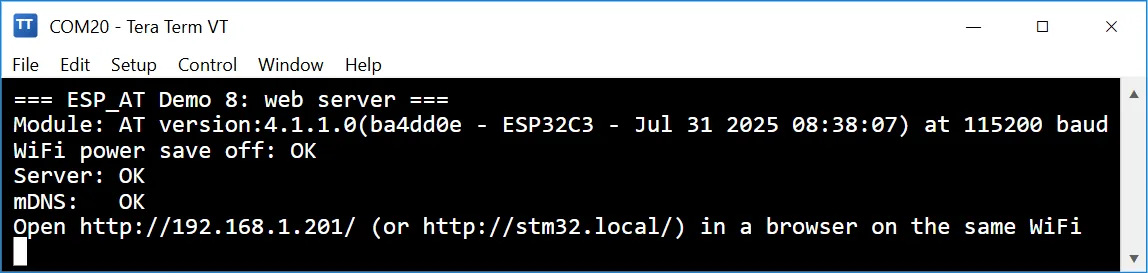
After a reset, the STM32 joins the WiFi, starts the server, and prints the address to open:
This is the real hardware testing result for this example project. On the left is the web page in Chrome, and on the right is my webcam on the Blue Pill: every click on LED ON or LED OFF switches the PC13 LED a moment later.
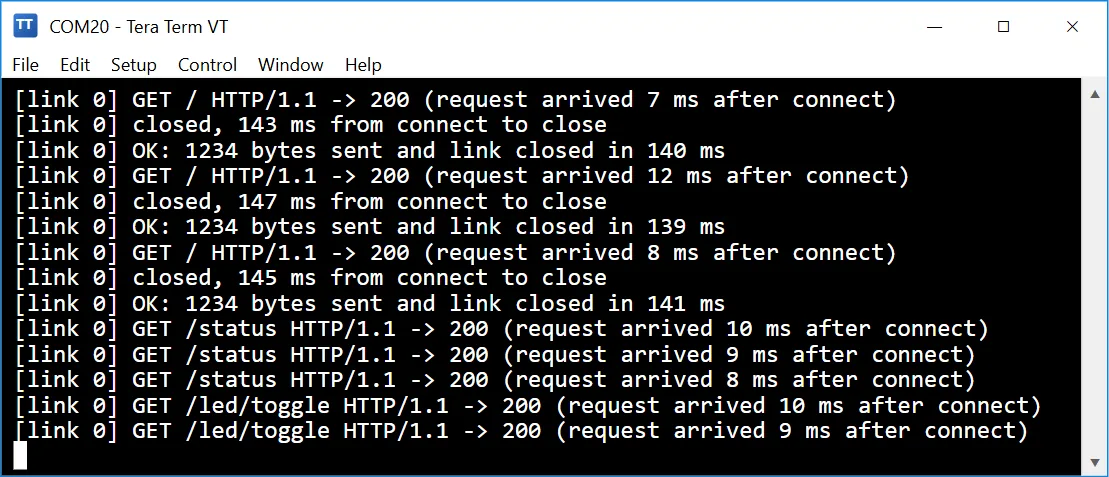
The STM32’s log shows every request, the link it came on, and the time from the connection to the end of the response:
STM32 Web Server Example 2: Live Temperature Dashboard
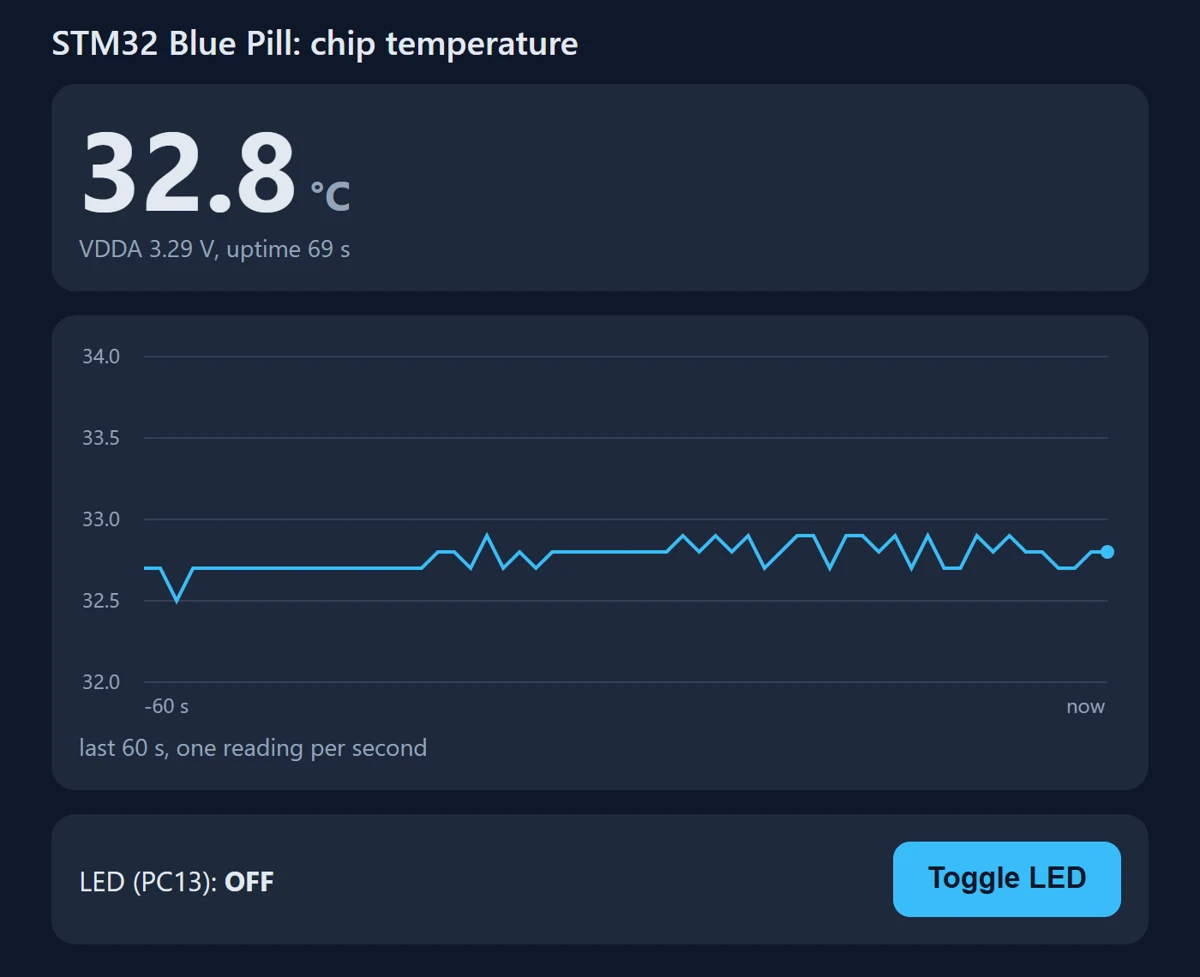
In this example project, the STM32 reads its internal temperature sensor once a second, keeps the last 60 readings, and serves a dashboard page with the current temperature in large digits and a live line chart of the last minute. The page draws the chart itself with a <canvas>, so it needs no chart library and works on a WiFi network without internet access. The LED toggle button is on the same page.
- /: the dashboard page (2.6KB).
- /data: the current temperature, the supply voltage (VDDA), the LED state, and the 60-reading history as JSON. The page asks for it every second.
- /led/toggle: toggles the LED.
Here is The Application Code For This Example Project (main.c). Only the USER CODE sections are shown; the rest of the file is generated by CubeMX:
|
1 2 3 4 5 6 7 8 9 10 11 12 13 14 15 16 17 18 19 20 21 22 23 24 25 26 27 28 29 30 31 32 33 34 35 36 37 38 39 40 41 42 43 44 45 46 47 48 49 50 51 52 53 54 55 56 57 58 59 60 61 62 63 64 65 66 67 68 69 70 71 72 73 74 75 76 77 78 79 80 81 82 83 84 85 86 87 88 89 90 91 92 93 94 95 96 97 98 99 100 101 102 103 104 105 106 107 108 109 110 111 112 113 114 115 116 117 118 119 120 121 122 123 124 125 126 127 128 129 130 131 132 133 134 135 136 137 138 139 140 141 142 143 144 145 146 147 148 149 150 151 152 153 154 155 156 157 158 159 160 161 162 163 164 165 166 167 168 169 170 171 172 173 174 175 176 177 178 179 180 181 182 183 184 185 186 187 188 189 190 191 192 193 194 195 196 197 198 199 200 201 202 203 204 205 206 207 208 209 210 211 212 213 214 215 216 217 218 219 220 221 222 223 224 225 226 227 228 229 230 231 232 233 234 235 236 237 238 239 240 241 242 243 244 245 246 247 248 249 250 251 252 253 254 255 256 257 258 259 260 261 262 263 264 265 266 267 268 269 270 271 272 273 274 275 276 |
/* USER CODE BEGIN Includes */ #include <stdio.h> #include <string.h> #include <stdarg.h> #include "ESP_AT.h" #include "wifi_secrets.h" /* USER CODE END Includes */ /* USER CODE BEGIN 0 */ /* One handle per ESP module */ static ESP_AT_HandleType esp; /* printf-style log on USART2 (the USB-UART adapter to the PC) */ static void Log(const char *fmt, ...) __attribute__((format(printf, 1, 2))); static void Log(const char *fmt, ...) { char buf[200]; va_list ap; va_start(ap, fmt); int n = vsnprintf(buf, sizeof(buf), fmt, ap); va_end(ap); if (n > (int)sizeof(buf) - 1) n = (int)sizeof(buf) - 1; if (n > 0) HAL_UART_Transmit(&huart2, (uint8_t *)buf, (uint16_t)n, 100); } /* Driver traffic log: ">>" = sent to the module, "<<" = received, "--" = driver note */ static void OnTrace(ESP_AT_HandleType *h, ESP_AT_TraceType type, const char *text) __attribute__((unused)); static void OnTrace(ESP_AT_HandleType *h, ESP_AT_TraceType type, const char *text) { (void)h; Log("%s %s\r\n", (type == ESP_AT_TRACE_TX) ? ">>" : (type == ESP_AT_TRACE_RX) ? "<<" : "--", text); } /* The HAL stops the DMA reception after a UART error; the driver restarts it */ void HAL_UART_ErrorCallback(UART_HandleTypeDef *huart) { ESP_AT_UART_ErrorCallback(&esp, huart); } /* Settings for this demo */ #define SERVER_PORT_HTTP 80 #define SERVER_BAUD 115200U /* module UART speed; 921600 loads the page about 3x faster */ #define MDNS_NAME "stm32" #define CLIENT_TIMEOUT_S 10 #define HISTORY_LEN 60 /* readings kept, one per second */ #define SAMPLES_PER_READ 16 /* ADC conversions averaged for each reading */ /* Internal temperature sensor, the method of the DeepBlueMbedded STM32 internal temperature sensor tutorial. * The F103 has no factory calibration values, so the datasheet typical values are used: * V25 = 1.43 V, Avg_Slope = 4.3 mV/C, VREFINT = 1.20 V. Expect an offset of a few degrees per chip. */ #define V25_MV 1430 #define AVG_SLOPE_UV 4300 /* 4.3 mV/C in uV/C */ #define VREFINT_MV 1200 /* The dashboard: a big number, a canvas chart of the last 60 s and the LED button. No external files, * so it also works on a WiFi without internet. */ static const char pageResponse[] = "HTTP/1.1 200 OK\r\nContent-Type: text/html\r\nCache-Control: no-store\r\nConnection: close\r\n\r\n" "<!DOCTYPE html><html><head><meta charset=utf-8>" "<meta name=viewport content=\"width=device-width,initial-scale=1\"><title>STM32 Temperature</title><style>" "body{margin:0;font-family:system-ui,sans-serif;background:#0f172a;color:#e2e8f0}" ".w{max-width:640px;margin:auto;padding:16px}h1{font-size:20px;font-weight:600;margin:4px 0 12px}" ".c{background:#1e293b;border-radius:14px;padding:16px;margin-bottom:14px}" "#t{font-size:64px;font-weight:700;line-height:1}#t small{font-size:24px;color:#94a3b8}" ".s{color:#94a3b8;font-size:14px;margin-top:6px}canvas{width:100%;height:220px;display:block}" ".r{display:flex;align-items:center;justify-content:space-between}" "button{font-size:17px;padding:12px 20px;border:0;border-radius:10px;background:#38bdf8;color:#0f172a;font-weight:600}" "#l{font-weight:700}</style></head><body><div class=w><h1>STM32 Blue Pill: chip temperature</h1>" "<div class=c><div id=t>--<small> °C</small></div><div class=s id=s>waiting for data...</div></div>" "<div class=c><canvas id=g></canvas><div class=s>last 60 s, one reading per second</div></div>" "<div class=\"c r\"><div>LED (PC13): <span id=l>?</span></div><button onclick=tg()>Toggle LED</button></div>" "</div><script>" "var g=document.getElementById('g'),x=g.getContext('2d'),H=[];" "function dr(){var d=devicePixelRatio||1,w=g.clientWidth,h=g.clientHeight;g.width=w*d;g.height=h*d;" "x.setTransform(d,0,0,d,0,0);x.clearRect(0,0,w,h);if(H.length<1)return;" "var lo=Math.min.apply(0,H),hi=Math.max.apply(0,H);lo=Math.floor(lo-0.5);hi=Math.ceil(hi+0.5);" "var L=38,T=8,W=w-L-8,Hh=h-T-22;x.font='12px system-ui';x.fillStyle='#94a3b8';x.strokeStyle='#334155';" "for(var i=0;i<=4;i++){var v=lo+(hi-lo)*i/4,y=T+Hh-Hh*i/4;x.beginPath();x.moveTo(L,y);x.lineTo(L+W,y);" "x.stroke();x.fillText(v.toFixed(1),2,y+4)}x.fillText('-60 s',L,h-4);x.fillText('now',L+W-24,h-4);" "x.strokeStyle='#38bdf8';x.lineWidth=2;x.beginPath();for(i=0;i<H.length;i++){" "var px=L+W*(i+60-H.length)/59,py=T+Hh-Hh*(H[i]-lo)/(hi-lo);i?x.lineTo(px,py):x.moveTo(px,py)}x.stroke();" "x.fillStyle='#38bdf8';x.beginPath();x.arc(px,py,4,0,7);x.fill()}" "function up(j){H=j.h;document.getElementById('t').innerHTML=j.t.toFixed(1)+'<small> °C</small>';" "document.getElementById('s').textContent='VDDA '+(j.vdda/1000).toFixed(2)+' V, uptime '+j.up+' s';" "document.getElementById('l').textContent=j.led?'ON':'OFF';dr()}" "function po(){fetch('/data').then(function(r){return r.json()}).then(up).catch(function(){})" ".finally(function(){setTimeout(po,1000)})}" "function tg(){fetch('/led/toggle').then(function(r){return r.json()}).then(up)}" "addEventListener('resize',dr);po()</script></body></html>"; static const char notFound[] = "HTTP/1.1 404 Not Found\r\nContent-Type: text/plain\r\nConnection: close\r\n\r\nNot found\n"; typedef struct { uint8_t open, lineDone, answered, len; char line[96]; uint32_t tOpen, tSend; uint16_t respLen; } SlotType; static SlotType slots[ESP_AT_MAX_LINKS]; static char jsonResponse[700]; /* header + 60 readings; unchanged while it is being sent */ static int16_t history[HISTORY_LEN]; /* tenths of a degree, oldest first once full */ static uint8_t histCount = 0, histHead = 0; static int16_t tempTenths = 0; static uint16_t vddaMv = 3300; static uint8_t lastLink = 0; static uint8_t LedIsOn(void) { return HAL_GPIO_ReadPin(LED_GPIO_Port, LED_Pin) == GPIO_PIN_RESET; } /* One conversion of an internal channel (16 = temperature, 17 = VREFINT) */ static uint32_t ReadChannel(uint32_t channel) { ADC_ChannelConfTypeDef c = {0}; c.Channel = channel; c.Rank = ADC_REGULAR_RANK_1; c.SamplingTime = ADC_SAMPLETIME_239CYCLES_5; /* the sensor needs >= 17.1 us; 239.5 cycles at 12 MHz = 20 us */ HAL_ADC_ConfigChannel(&hadc1, &c); HAL_ADC_Start(&hadc1); uint32_t v = (HAL_ADC_PollForConversion(&hadc1, 5) == HAL_OK) ? HAL_ADC_GetValue(&hadc1) : 0; HAL_ADC_Stop(&hadc1); return v; } /* VDDA from VREFINT, then Vsense and T = (V25 - Vsense) / Avg_Slope + 25, all in integers */ static void ReadTemperature(void) { uint32_t sumRef = 0, sumT = 0; for (int i = 0; i < SAMPLES_PER_READ; i++) { sumRef += ReadChannel(ADC_CHANNEL_VREFINT); sumT += ReadChannel(ADC_CHANNEL_TEMPSENSOR); } if (sumRef == 0) return; vddaMv = (uint16_t)((uint32_t)VREFINT_MV * 4095U * SAMPLES_PER_READ / sumRef); int32_t senseUv = (int32_t)((uint64_t)sumT * vddaMv * 1000U / (4095U * SAMPLES_PER_READ)); tempTenths = (int16_t)(((int32_t)V25_MV * 1000 - senseUv) * 10 / AVG_SLOPE_UV + 250); history[histHead] = tempTenths; histHead = (uint8_t)((histHead + 1U) % HISTORY_LEN); if (histCount < HISTORY_LEN) histCount++; } static int PutTenths(char *p, int room, int16_t v) { int a = v < 0 ? -v : v; return snprintf(p, (size_t)room, "%s%d.%d", v < 0 ? "-" : "", a / 10, a % 10); } static uint16_t BuildData(void) { int n = snprintf(jsonResponse, sizeof(jsonResponse), "HTTP/1.1 200 OK\r\nContent-Type: application/json\r\nCache-Control: no-store\r\nConnection: close\r\n\r\n{\"t\":"); n += PutTenths(jsonResponse + n, (int)sizeof(jsonResponse) - n, tempTenths); n += snprintf(jsonResponse + n, sizeof(jsonResponse) - (size_t)n, ",\"vdda\":%u,\"led\":%u,\"up\":%lu,\"h\":[", vddaMv, LedIsOn(), (unsigned long)(HAL_GetTick() / 1000U)); for (uint8_t i = 0; i < histCount && n < (int)sizeof(jsonResponse) - 12; i++) { uint8_t k = (uint8_t)((histHead + HISTORY_LEN - histCount + i) % HISTORY_LEN); if (i) jsonResponse[n++] = ','; n += PutTenths(jsonResponse + n, (int)sizeof(jsonResponse) - n, history[k]); } n += snprintf(jsonResponse + n, sizeof(jsonResponse) - (size_t)n, "]}"); return (uint16_t)n; } static void OnEvent(ESP_AT_HandleType *h, ESP_AT_EventType ev, const ESP_AT_EventDataType *d) { (void)h; if (d->link >= ESP_AT_MAX_LINKS) return; SlotType *s = &slots[d->link]; switch (ev) { case ESP_AT_EVT_LINK_OPENED: memset(s, 0, sizeof(*s)); s->open = 1; s->tOpen = HAL_GetTick(); break; case ESP_AT_EVT_DATA: for (uint16_t i = 0; i < d->len && !s->lineDone; i++) { char c = (char)d->data[i]; if (c == '\r' || c == '\n' || s->len >= sizeof(s->line) - 1) { s->line[s->len] = '\0'; s->lineDone = 1; } else s->line[s->len++] = c; } break; case ESP_AT_EVT_LINK_CLOSED: s->open = 0; s->lineDone = 0; break; case ESP_AT_EVT_JOB_DONE: if (d->job == ESP_AT_JOB_SEND) Log("[link %u] %s, %u bytes in %lu ms\r\n", lastLink, ESP_AT_StatusText(d->status), slots[lastLink].respLen, (unsigned long)(HAL_GetTick() - slots[lastLink].tSend)); break; default: break; } } static const char *Route(const char *line, uint16_t *len, int *code) { char path[40] = ""; if (strncmp(line, "GET ", 4) == 0) { uint8_t n = 0; for (const char *p = line + 4; *p && *p != ' ' && *p != '?' && n < sizeof(path) - 1; p++) path[n++] = *p; path[n] = '\0'; } *code = 200; if (strcmp(path, "/") == 0) { *len = sizeof(pageResponse) - 1; return pageResponse; } if (strcmp(path, "/led/toggle") == 0) HAL_GPIO_TogglePin(LED_GPIO_Port, LED_Pin); else if (strcmp(path, "/led/on") == 0) HAL_GPIO_WritePin(LED_GPIO_Port, LED_Pin, GPIO_PIN_RESET); else if (strcmp(path, "/led/off") == 0) HAL_GPIO_WritePin(LED_GPIO_Port, LED_Pin, GPIO_PIN_SET); else if (strcmp(path, "/data") != 0) { *code = 404; *len = sizeof(notFound) - 1; return notFound; } *len = BuildData(); return jsonResponse; } /* USER CODE END 0 */ /* Inside main(), after the MX_..._Init() calls */ /* USER CODE BEGIN 2 */ ESP_AT_ConfigType cfg = {0}; cfg.huart = &huart1; cfg.multiLink = 1; cfg.autoReconnect = 1; cfg.baudRate = SERVER_BAUD; cfg.onEvent = OnEvent; Log("\r\n=== ESP_AT Demo 9: temperature dashboard ===\r\n"); HAL_ADCEx_Calibration_Start(&hadc1); ReadTemperature(); if (ESP_AT_Init(&esp, &cfg) != ESP_AT_OK) Error_Handler(); if (ESP_AT_Begin_Blocking(&esp) != ESP_AT_OK) { Log("no module\r\n"); Error_Handler(); } if (ESP_AT_WiFiJoin_Blocking(&esp, WIFI_SSID, WIFI_PASSWORD) != ESP_AT_OK) { Log("join failed\r\n"); Error_Handler(); } char cmd[24]; snprintf(cmd, sizeof(cmd), ESP_AT_CMD_CIPSTO, (unsigned)CLIENT_TIMEOUT_S); ESP_AT_Command_Blocking(&esp, cmd, 1000); Log("Server: %s\r\n", ESP_AT_StatusText(ESP_AT_ServerStart_Blocking(&esp, SERVER_PORT_HTTP))); Log("mDNS: %s\r\n", ESP_AT_StatusText(ESP_AT_Mdns_Blocking(&esp, MDNS_NAME, "_http", SERVER_PORT_HTTP))); Log("Dashboard: http://%s/ (page %u bytes)\r\n", esp.ip, (unsigned)(sizeof(pageResponse) - 1)); uint32_t tempTime = HAL_GetTick(); /* USER CODE END 2 */ /* Inside while (1) */ /* USER CODE BEGIN 3 */ ESP_AT_Process(&esp); if (HAL_GetTick() - tempTime >= 1000) { tempTime += 1000; ReadTemperature(); /* 16 + 16 conversions at 20 us each: under 1 ms */ } if (!ESP_AT_IsBusy(&esp)) { for (uint8_t k = 1; k <= ESP_AT_MAX_LINKS; k++) { uint8_t i = (uint8_t)((lastLink + k) % ESP_AT_MAX_LINKS); SlotType *s = &slots[i]; if (!s->open || !s->lineDone || s->answered) continue; uint16_t len; int code; const char *resp = Route(s->line, &len, &code); if (ESP_AT_SendClose(&esp, i, resp, len) == ESP_AT_OK) { s->answered = 1; s->tSend = HAL_GetTick(); s->respLen = len; lastLink = i; Log("[link %u] %s -> %d\r\n", i, s->line, code); } break; } } } /* USER CODE END 3 */ |
STM32 Internal Temperature Sensor Reading
The STM32F103’s temperature sensor is an analog voltage on ADC1 channel 16: 1.43V at 25°C (V25), falling by 4.3mV per °C (Avg_Slope), so the temperature is:
|
1 |
T (°C) = (V25 - Vsense) / Avg_Slope + 25 |
The example averages 16 conversions per reading and measures the real supply voltage with the internal reference (Vrefint, channel 17), so Vsense stays right even if the 3.3V supply is a bit off. The STM32F103 has no factory calibration values for the sensor, so V25 and Avg_Slope are the datasheet’s typical values, and the result can be a few degrees off from chip to chip. It also measures the chip, not the room: our reading was about 32°C in a room around 25°C. The STM32 internal temperature sensor tutorial explains the sensor and its calibration in detail.
STM32 Web Server Dashboard Testing
This is the real dashboard served by the Blue Pill, after one minute of readings:
|
1 2 3 4 |
/ HTTP/1.1 200 OK: body 2565 B, connect to close 311 ms median (290-329), 10 runs waiting 45 s for the history to fill... /data HTTP/1.1 200 OK: body 324 B, connect to close 93 ms median (85-100), 10 runs /data now: t=32.7 C, vdda=3295 mV, led=0, 56 history points, min 30.6 max 32.7 |
STM32 Web Server Measured: Page Load Times
We loaded each address 10 times from a PC on the same WiFi and measured the time from the request to the end of the response (median):
| Request | Size | 115200 baud | 921600 baud |
|---|---|---|---|
| Example 1 page (/) | 1.2KB | 162ms | 56ms |
Example 1 /status JSON | 47 bytes | 64ms | 42ms |
Example 1 /led/toggle | JSON | 69 to 73ms | 48 to 53ms |
| Example 2 dashboard page (/) | 2.6KB | 311ms | – |
Example 2 /data JSON (60 readings) | 324 bytes | 93ms | – |
At 115200 baud, the UART between the STM32 and the ESP32-C3 is the limit for the page itself: 1.2KB takes about 110ms on the wire. At 921600 baud, the same page loads in 56ms. Set SERVER_BAUD in the example to switch the speed.
How Many Browsers at Once?
The ESP32-C3 holds up to 5 connections at a time. We tested what happens when several clients connect at the same moment:
| Test | Result |
|---|---|
| 3 clients at once | All 3 got the page. The connections were accepted at 0, 1, and 3 seconds |
| 7 clients at once | 4 got the page, 3 timed out after 10 seconds. The server recovered by itself afterwards |
| 5 idle connections held open | A 6th connection is refused (the ESP-AT link limit) |
The 1 and 3 second steps come from the ESP32-C3, not the STM32: when several connection requests arrive at the same instant, it accepts one and drops the others, and the PC retries them after 1, 3, and 7 seconds. A browser opens only 1 or 2 connections, so one page in a few tabs or phones works fine. Because the server closes each connection after its response, links are freed quickly.
STM32 Web Server Troubleshooting
The page doesn’t open
Use the IP address the STM32 prints in its log, from a device on the same WiFi network (not a guest network, which usually blocks devices from each other). Make sure the URL starts with http://, not https://. The STM32 doesn’t serve HTTPS.
http://stm32.local doesn’t work
mDNS needs support on the client and the network. Older Android versions and some routers don’t support it. Use the IP address, or give the ESP32-C3 a fixed IP address in your router’s DHCP settings.
AT+CIPSERVER returns ERROR
The server needs multiple connections enabled first ( AT+CIPMUX=1), and AT+CIPMUX can only change while no connection is open. Our driver’s Begin closes old connections, and cfg.multiLink = 1 sets the mode.
The page loads slowly or partly
At 115200 baud, every KB takes about 90ms on the UART. Keep the page small, or switch the UART to 921600 baud. Don’t send big pictures from the STM32: link to them on another server instead.
The temperature reading is wrong
The STM32F103 sensor has no factory calibration, so expect an offset of a few degrees. Measure the offset once against a thermometer and subtract it. Also use a long ADC sampling time (239.5 cycles).
STM32 Web Server FAQ
Can the STM32 web server be reached from the internet?
Only through your router: you’d need port forwarding to the ESP32-C3’s IP address, and the page has no password or encryption. For remote access, it’s safer to send the data out to a server or an MQTT broker, which we’ll cover in the next part of this series.
How many pages or devices can the STM32 web server handle?
The ESP32-C3 keeps up to 5 connections at once, and each request takes 50 to 300ms, so a few phones and PCs at the same time work well. It isn’t meant for many users.
Can I serve HTML files from an SD card?
Yes. Read the file in chunks and send each chunk with the driver’s send call before closing the link. Keep in mind the UART speed limit for large files.
Do I need FreeRTOS or LwIP for an STM32 web server?
Not with an ESP32-C3 running ESP-AT: the TCP/IP stack runs on the ESP32-C3, and the STM32 only handles the HTTP text. You need LwIP for an STM32 with Ethernet, like an STM32F4 or STM32H7 board.
STM32 WiFi Tutorial Series
This tutorial is the fifth part of our STM32 WiFi tutorial series:
| Part | Tutorial | What You’ll Build |
|---|---|---|
| 1 | STM32 WiFi | Choosing a WiFi module, quick start, ESP32-C3 vs ESP8266 measured |
| 2 | ESP8266 AT Commands With STM32 | ESP8266 AT firmware, commands, and our ESP_AT driver |
| 3 | ESP32 AT Commands With STM32 | ESP-AT firmware, commands, SNTP time, and our ESP_AT driver |
| 4 | STM32 HTTP Client Over WiFi | GET, POST, HTTPS, and JSON parsing |
| 5 | STM32 Web Server Over WiFi (this tutorial) | Control GPIO from a browser, live temperature dashboard |
| 6 | STM32 MQTT Tutorial | Publish and subscribe, last will, MQTT over TLS |
| 7 | STM32 OTA Firmware Update Over WiFi | Bootloader, dual-slot update, CRC32 check |
| 8 | STM32 WebSocket With ESP32 | WebSocket server on the STM32, live dashboard |
Download STM32 Web Server Example Projects (LED Control, Temperature Dashboard)
Download all attachment files for this Article/Tutorial (project files, schematics, code, etc.) using the link below. Everything is tested and verified to work on real hardware, as you’ve seen in the demo videos & screenshots. Please consider supporting my work if it helped you.
Wrap Up
To conclude this tutorial, we’ve built an STM32 web server over WiFi with an ESP32-C3 and our ESP_AT driver. The STM32 parses the HTTP requests and serves the pages, while the ESP32-C3 holds the WiFi and the TCP connections. We controlled the Blue Pill’s LED from a browser, served a live dashboard of the STM32’s internal temperature sensor, and measured page loads of 56 to 311ms and the limits with several browsers at once.
In the next part of this series, we’ll connect the STM32 to an MQTT broker to publish sensor data and receive commands, and show it in Home Assistant.
